PageSpeed ERR_TIMED_OUT error
October 13, 2026A full-screen video playing silently behind the headline is one of the most requested features in web design. It feels premium, it shows the product or place in motion, and it looks great in a presentation on a fast office connection.
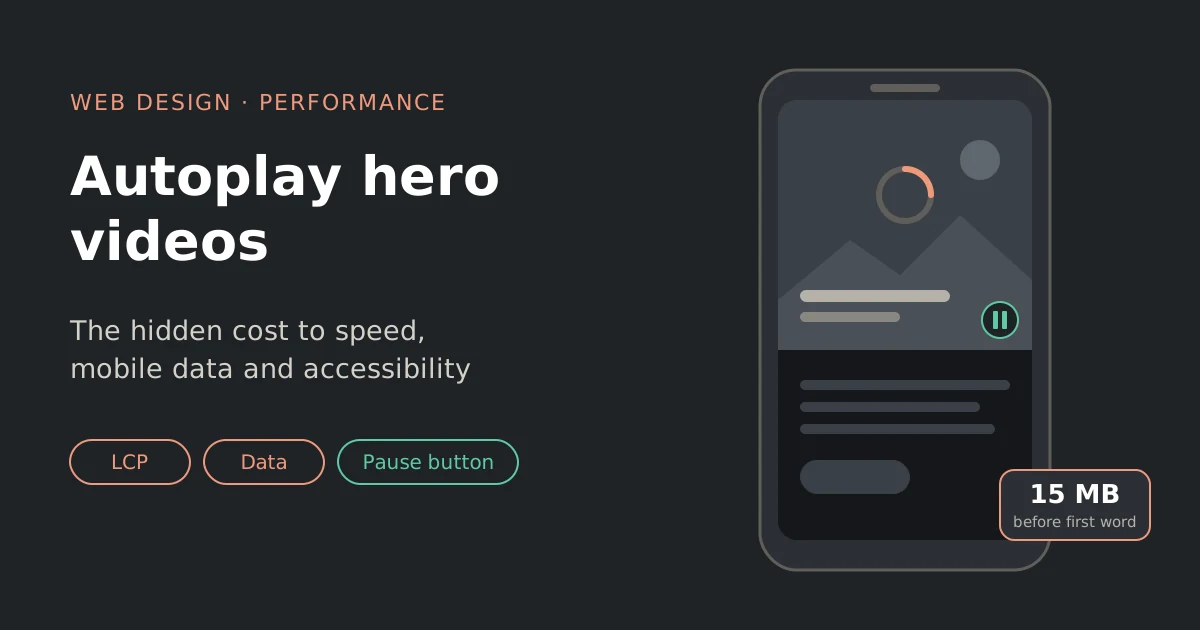
On a real visitor’s phone, it’s often a different story: a slow first load, megabytes of mobile data gone before they’ve read a word, a headline that’s hard to read over moving footage, and, for some people, a page that’s genuinely difficult to use.
This guide covers what an autoplay hero video really costs, how to check yours, and how to keep the look without the problems.
What it costs
1. Speed and LCP
The hero is usually the largest thing on screen, so it’s what Google measures for LCP (Largest Contentful Paint), the time until the main content appears. A good LCP is 2.5 seconds or less.
With a hero video, the browser has to fetch the video (or at least its start) while also loading the page’s CSS, fonts and scripts. On a phone over 4G, the first frame often arrives late, and until then visitors see a blank or black box. If the video comes from YouTube or Vimeo, there’s also a heavy embed player to download first.
2. Mobile data
A typical background video is 5–20 MB. That’s more than the rest of the page combined, often several times over. Visitors on limited data plans, roaming, or poor coverage pay for footage they didn’t ask to watch. And because it loops, some browsers keep using bandwidth as long as the tab is open.
3. Readability and focus
Text over moving footage is hard to read. The contrast changes every second: white text that’s readable over a dark frame disappears over a bright sky. Movement also pulls the eye away from the headline and the button you actually want people to click.
4. Accessibility
- WCAG 2.2.2 (Pause, Stop, Hide): anything that moves automatically for more than 5 seconds, alongside other content, needs a way to pause, stop or hide it. A looping background video falls under this. It’s a Level A requirement, the most basic level.
- Motion sensitivity: for people with vestibular disorders, large moving backgrounds can cause dizziness or nausea. Many set “reduce motion” on their device, and websites should respect it.
- Attention: for people with ADHD or cognitive impairments, constant movement makes it hard to focus on the rest of the page.
- Sound: if a video plays sound automatically for more than 3 seconds, there must be a way to stop it (WCAG 1.4.2). Browsers mostly block autoplay with sound anyway.
Step 1: Check what your hero video is doing
Find the file size. Open Chrome developer tools (Cmd + Option + I on Mac, F12 on Windows), go to the Network tab, tick Disable cache, click the Media filter, and reload. Note the size of the video and how long it takes.
[Image: network-tab-hero-video-size.webp | Alt text: Chrome Network tab filtered to Media, showing a large hero video file loading]
Test on a slow connection. In the Network tab, set throttling to Slow 4G and reload. How long is the hero empty or black? Is the headline readable before the video starts?
Run PageSpeed Insights on mobile. Look at:
- LCP and the LCP breakdown, to see if the hero is the LCP element and what’s slowing it.
- Avoid enormous network payloads, where the video usually tops the list.
- Any warnings about third-party code, if you embed from YouTube or Vimeo.
Check for a pause control. Can you see one? Can you reach it with the Tab key? Does it work with Enter or Space?
Check reduce motion. On a Mac: System Settings → Accessibility → Display → Reduce motion. On an iPhone: Settings → Accessibility → Motion → Reduce Motion. On Windows: Settings → Accessibility → Visual effects → Animation effects (off). Reload the page. Does the video still play? It shouldn’t.
Step 2: Decide if you need it at all
Before optimising, ask what the video actually does for the visitor. A video earns its place when the movement itself tells the story: a product in use, a venue’s atmosphere, a process that’s hard to show in one photo.
It usually doesn’t when:
- it’s generic stock footage (people in an office, a city time-lapse)
- a single strong photo would say the same thing
- the headline and main button are hard to read over it
- most visitors are on mobile and on the move
A good middle ground: a strong still image as the hero, with a clearly labelled “Watch the video” button. Visitors who want it can choose it, with sound and proper controls.
Step 3: Show a poster image first
If you keep the video, the most important fix is the poster image: a still frame that appears straight away, before the video loads. It’s usually what Google measures for LCP, so treat it like a hero image:
- Export a good frame from the video (ideally the first, so the switch is smooth).
- Save it as WebP, around 1600px wide, and keep it light.
- Preload it so the browser starts downloading it immediately:
<link rel="preload" as="image" href="/images/hero-poster.webp" fetchpriority="high">With a good poster, visitors see the hero instantly, even if the video takes a few seconds or never plays at all.
Step 4: Make the video much smaller
Most hero videos are far larger than they need to be. For a background:
- Keep it short: 8–15 seconds, looping smoothly.
- Lower the resolution: 1280px wide (720p) is usually plenty, especially behind text and a dark overlay. Consider a smaller version for phones.
- Remove the audio track. A muted video with an audio track still downloads it.
- Compress it properly. Aim for 1–3 MB for desktop and under 1 MB for mobile.
- Self-host or use a video CDN instead of a YouTube or Vimeo background embed, which loads a whole player you don’t need.
With the free tool ffmpeg, these two commands make an MP4 and a smaller WebM version, without sound and at 720p:
ffmpeg -i hero-original.mov -vf "scale=1280:-2" -an -c:v libx264 -crf 28 -preset slow -movflags +faststart hero.mp4

ffmpeg -i hero-original.mov -vf "scale=1280:-2" -an -c:v libvpx-vp9 -crf 36 -b:v 0 hero.webm-anremoves the audio.-crfcontrols quality: a higher number means a smaller file. Try a few values and compare.-movflags +faststartlets the MP4 start playing before it’s fully downloaded.
Step 5: Load it the right way
Here’s a hero video that shows the poster straight away, doesn’t download until it’s allowed to play, gives phones a smaller file, and comes with a pause button:
<div class="hero">
  <video class="hero-video" muted loop playsinline preload="none"
         poster="/images/hero-poster.webp" aria-hidden="true">
    <source src="/video/hero-mobile.mp4" type="video/mp4" media="(max-width: 767px)">
    <source src="/video/hero.webm" type="video/webm">
    <source src="/video/hero.mp4" type="video/mp4">
  </video>

  <h1>Your headline</h1>

  <button type="button" class="video-toggle">Pause background video</button>
</div>muted: required for autoplay in all major browsers.playsinline: stops iPhones from opening the video full screen.preload="none": nothing downloads until the script decides to play it.poster: the still image shown first.aria-hidden="true": the video is decorative, so screen readers skip it.- The phone version comes first, because the browser uses the first
<source>that matches.
Note there’s no autoplay attribute. The script below starts the video only when it’s appropriate:
const video = document.querySelector('.hero-video');
const button = document.querySelector('.video-toggle');
const reduceMotion = window.matchMedia('(prefers-reduced-motion: reduce)').matches;
const saveData = navigator.connection && navigator.connection.saveData;

function playVideo() {
  video.play().catch(() => {});
  button.textContent = 'Pause background video';
}

function pauseVideo() {
  video.pause();
  button.textContent = 'Play background video';
}

button.addEventListener('click', () => {
  video.paused ? playVideo() : pauseVideo();
});

if (reduceMotion || saveData) {
  pauseVideo();
} else {
  playVideo();
}
What it does:
- If the visitor has reduce motion turned on, the video doesn’t play. They see the poster.
- If their browser reports data saver mode (supported in Chrome on Android), it doesn’t play either.
- Otherwise it starts, and the button lets anyone pause or restart it.
Step 6: Make the pause button usable
The pause control is a requirement, not a nice extra, so it needs to work for everyone:
- It’s a real
<button>, so it works with the keyboard. - It has a text label that says what it does (“Pause background video”). If you use an icon, keep the text for screen readers.
- It’s visible without hovering, with good contrast against the video.
- It’s big enough to tap: at least 24 × 24 pixels, ideally 44 × 44.
- It’s in a sensible place in the tab order, near the start of the hero, not after the whole page.
- It has a visible focus outline when reached with the keyboard.
Step 7: Keep the headline readable
- Add a dark overlay (a semi-transparent layer between the video and the text) so contrast stays steady as the footage changes.
- Check contrast against the brightest frame, not the average one. Text needs a ratio of at least 4.5:1, or 3:1 for large headings.
- Choose calm footage. Slow movement and few cuts work better behind text than fast action.
- Don’t put essential information in the video. Anything that matters (the offer, the message, the call to action) should be real text on the page.
On WordPress
Most WordPress hero videos are added as a section background in a page builder or theme. Look for these settings:
- A fallback or poster image. Elementor’s background video has a background fallback image. Set one, compressed as WebP.
- “Play on mobile”. Consider leaving it off, so phones get the still image only.
- Self-hosted rather than YouTube or Vimeo, where the builder offers the choice. Upload the compressed MP4 to the Media Library.
- A pause button. Builders often don’t add one for background videos. You may need a small custom script like the one above, or a different layout with a still image and a “Watch video” button.
After changes, clear your page builder and cache plugin caches, then re-test with PageSpeed and on a real phone.
Quick checklist
- Ask whether the video earns its place; consider a still image plus a “Watch video” button.
- Set a compressed WebP poster image and preload it.
- Keep the video short, 720p, without audio: 1–3 MB desktop, under 1 MB mobile.
- Self-host it rather than using a YouTube or Vimeo background embed.
- Use
muted,playsinline,preload="none"and a poster. - Don’t play it when reduce motion or data saver is on.
- Add a visible, labelled, keyboard-friendly pause button.
- Use a dark overlay and check text contrast against the brightest frame.
- Keep important messages as real text, not in the footage.
- Re-test on Slow 4G, in PageSpeed, and on a real phone.