
AI Integration for SMEs — Where to Start Without a Big Budget
June 4, 2026
PageSpeed ERR_TIMED_OUT error
October 13, 2026You open a page, start reading, and the text suddenly jumps. Buttons move, a heading wraps onto a new line, and you lose your place. Very often, the cause is a web font loading from Google’s servers a moment after the page appears.
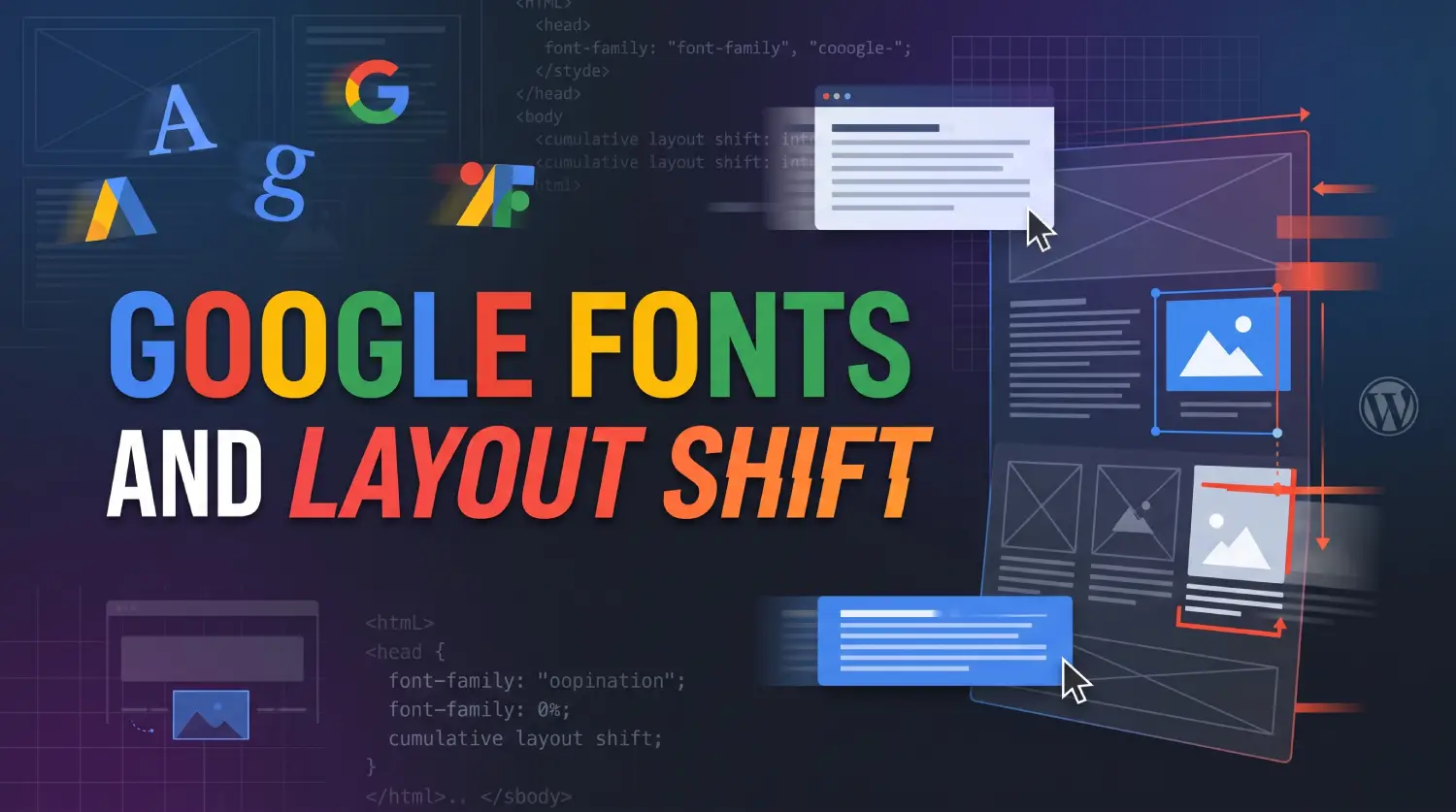
This guide explains why it happens, how to check whether your site is affected, and how to fix it, on WordPress and on any other site.
Why web fonts cause layout shift
When a page uses a Google Font, the browser has to:
- Load your page.
- Connect to
fonts.googleapis.comand download a small CSS file. - Read that file, then connect to
fonts.gstatic.com. - Download the actual font files.
That’s two extra servers and a chain of requests before the font is ready. Meanwhile, the browser either shows nothing (invisible text) or shows a backup font like Arial.
When the real font finally arrives, it replaces the backup. If the two fonts are different sizes, and they almost always are, every line of text changes width and height. Paragraphs re-wrap and everything below them moves. That movement is layout shift.
Think of it like laying a carpet after the furniture is already in place: everything has to shuffle to make room.
Why it matters
- Core Web Vitals. Google measures layout shift as CLS (Cumulative Layout Shift). A good score is 0.1 or less. It’s one of the page experience signals Google looks at.
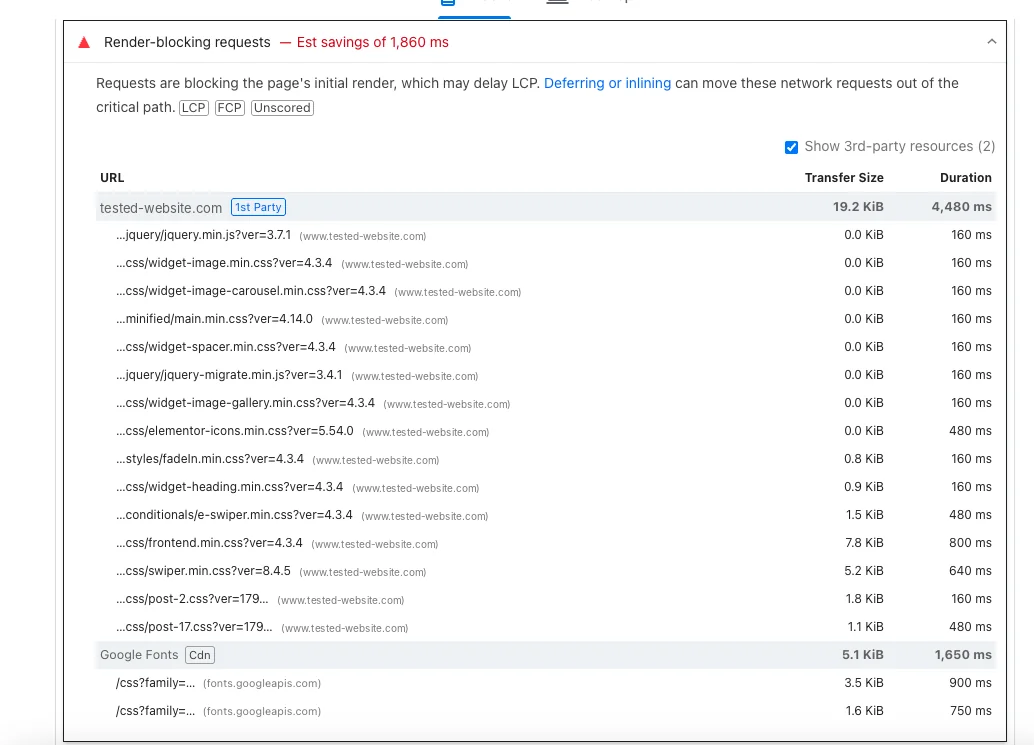
- Slower first paint. The font chain can hold up text appearing at all. Google lists it as a render-blocking request.
- User experience. Moving content causes misclicks, especially on mobile.
- GDPR. Loading fonts from Google sends each visitor’s IP address to Google. In January 2022, a Munich court ruled that doing this without consent breached GDPR and awarded a visitor damages. Hosting fonts yourself avoids the question entirely.
Step 1: Check if your site is affected
PageSpeed Insights. Run your page through pagespeed.web.dev and look for:
- Render-blocking requests listing
fonts.googleapis.com - Avoid chaining critical requests with
fonts.gstatic.comfiles at the end of the chain - A Cumulative Layout Shift score above 0.1
Chrome Network tab. Open developer tools (Cmd + Option + I on Mac, F12 on Windows), go to Network, tick Disable cache, and click the Font filter. Reload. If the files come from fonts.gstatic.com, you’re loading from Google.
Watch it happen. In the developer tools, open the Network tab and set throttling to Slow 4G. Reload and watch the text. If it flickers or jumps when the font swaps in, that’s the shift.
Check the page source. Search the HTML for fonts.googleapis.com. On WordPress, it’s often added by the theme, the page builder and a plugin, sometimes all three at once.
Step 2: Host the fonts yourself
This is the biggest single fix. The fonts load from your own domain, over the connection the browser already has open, so the two extra servers disappear from the chain.
On WordPress
Most popular tools now have a built-in option:
- Elementor: Elementor → Settings → Performance → Load Google Fonts Locally: Enable. Then go to Elementor → Tools and click Clear Files & Data, or the old links stay in place.
- Astra: Appearance → Customize → Performance, and turn on loading Google Fonts locally.
- Other themes, or several sources at once: the free OMGF plugin (Optimize My Google Fonts) finds Google Fonts on your pages and serves them from your server.
After changing it, clear every cache: the page builder, your cache plugin, and Cloudflare if you use it. Then check the Network tab again. No requests should go to fonts.gstatic.com.
On any other site
- Download the fonts in WOFF2 format. Tools like google-webfonts-helper or Fontsource give you the files and the CSS.
- Upload them to your site, for example
/fonts/. - Replace the Google Fonts
<link>with your own@font-facerules:
@font-face {
  font-family: "Roboto";
  src: url("/fonts/roboto-v30-latin-regular.woff2") format("woff2");
  font-weight: 400;
  font-style: normal;
  font-display: swap;
}
Step 3: Load fewer fonts
Every weight and style is a separate file. A theme that loads Roboto in 100, 200, 300, 400, 500, 600, 700, 800 and 900, plus italics, can request 18 files when the page uses three.
- Check which weights your design actually uses. Usually regular (400) and bold (700) are enough, perhaps one more.
- Limit them in your theme or page builder’s typography settings.
- Stick to one or two font families. A separate font for headings is fine; a third and fourth rarely add much.
- Load only the latin subset unless your content needs others (Cyrillic, Greek, Vietnamese).
- If you need many weights, consider a variable font: one file that covers every weight.
Step 4: Set font-display
font-display tells the browser what to do while the font is still loading:
- swap: show the backup font straight away, then switch. Text appears fast, but you get a shift when it switches. The most common choice.
- optional: use the web font only if it arrives almost instantly; otherwise stay with the backup for that page view. No shift at all, but first-time visitors may see the backup font.
- block: hide text for up to about 3 seconds while waiting. Avoid it.
- auto: leaves it up to the browser, which usually behaves like block. Avoid it too.
In Elementor, it’s under Elementor → Settings → Advanced → Google Fonts Load. Many sites are still on Auto. Set it to Swap, then use Step 5 to make the swap invisible.
Step 5: Make the backup font match
The shift happens because the backup font is a different size from the web font. Modern CSS lets you stretch the backup so it takes up the same space. When the real font arrives, the letters change shape but nothing moves.
@font-face {
  font-family: "Roboto Fallback";
  src: local("Arial");
  size-adjust: 100.3%;
  ascent-override: 92.8%;
  descent-override: 24.4%;
  line-gap-override: 0%;
}

body {
  font-family: "Roboto", "Roboto Fallback", Arial, sans-serif;
}
These numbers are an example for Roboto over Arial. For your own font, use a fallback font generator, which calculates the values for you, and add the result as custom CSS (in WordPress: Appearance → Customize → Additional CSS).
This step is optional, but it’s what takes CLS from “better” to near zero.
Step 6: Preload the main font
Normally the browser only discovers a font after it has read the CSS. Preloading tells it to start downloading the font straight away:
<link rel="preload" href="/fonts/roboto-v30-latin-regular.woff2" as="font" type="font/woff2" crossorigin>- Only preload the one or two fonts used above the fold, usually the body text and main heading.
- Keep the
crossoriginattribute, even on your own domain, or the browser downloads the font twice. - Preloading too many files slows down everything else.
Some cache and font plugins (OMGF included) can add preload tags for you.
Step 7: Check icon fonts too
Icon sets like Font Awesome and Elementor’s eicons are fonts too. Before they load, icons show as blank squares or shift into place.
In Elementor, go to Settings → Features and set Inline Font Icons to Active. Icons are then drawn as inline SVG, and the icon font files aren’t loaded at all.
Step 8: Test again
- Clear all caches.
- In the Chrome Network tab, filter by Font. Every file should come from your own domain, in WOFF2.
- Re-run PageSpeed Insights. Google Fonts should be gone from render-blocking requests, and CLS should be at or under 0.1.
- Test on a real phone over mobile data. That’s where font shift is most visible.
Remember that PageSpeed’s field data (real users) takes about 28 days to catch up. The lab score updates straight away.
Quick checklist
- Find every place Google Fonts load: theme, page builder, plugins.
- Switch to local fonts, then clear all caches.
- Cut weights and styles to what the design uses.
- Load the latin subset only, in WOFF2.
- Set
font-display: swap(not auto). - Add a size-matched fallback font.
- Preload one or two above-the-fold fonts.
- Switch icon fonts to inline SVG.
- Re-test: Network tab, PageSpeed, a real phone.