
SMALL BUSINESS CYBERSECURITY
February 17, 2026
WordPress White Screen of Death: Causes, Fixes and Prevention
April 24, 2026
Why Websites Get Hacked
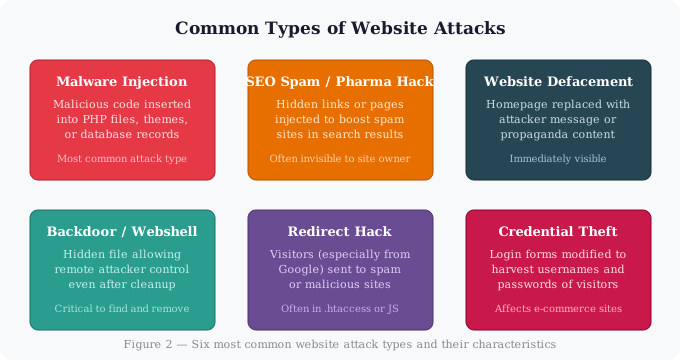
Hackers rarely target specific small websites personally. Most attacks are automated: bots continuously scan the internet for sites running outdated software, weak passwords, or known vulnerabilities. Common entry points include:
- Outdated CMS versions (WordPress, Joomla, Drupal)
- Vulnerable or abandoned plugins and themes
- Stolen or brute-forced FTP/admin credentials
- Compromised shared hosting neighbours
- Malicious file uploads through unprotected forms
Understanding the entry point is essential — if you clean the site without closing the vulnerability, attackers will simply return.
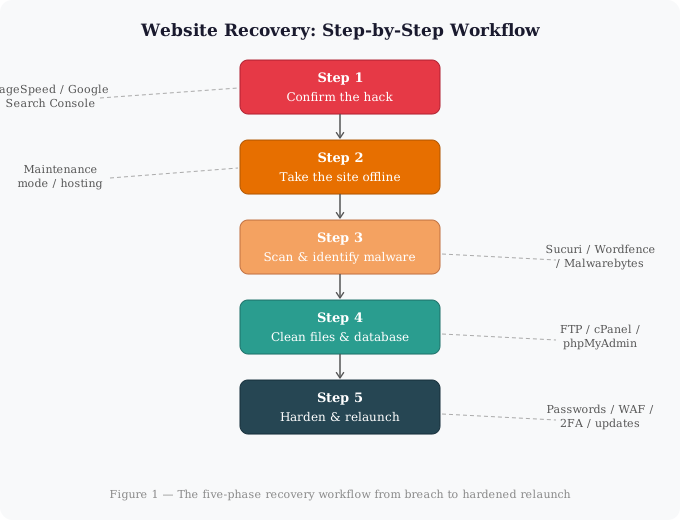
Step 1: Confirm the Hack
Before you do anything else, confirm that your site is genuinely compromised and gather evidence about what kind of attack occurred.
Signs your website has been hacked
- Google Search shows your site with warnings: “This site may be hacked” or “Deceptive site ahead”
- Your hosting provider has suspended or flagged your account
- Visitors report being redirected to spam or adult websites
- You notice new admin accounts you did not create
- Your homepage has been defaced or replaced with attacker content
- Google Search Console shows security issues or new external links
- Unexpected spikes in server load or bandwidth usage
Tools to confirm and diagnose
- Google Search Console — Go to Security & Manual Actions to see if Google has flagged your site
- Sucuri SiteCheck (sitecheck.sucuri.net) — Free online scanner that checks for blacklisting, malware, and injections
- VirusTotal — Scan your URL against 70+ security engines
- Google Safe Browsing — Check transparencyreport.google.com/safe-browsing/search
Write down what you find: what type of malware is present, which files appear modified, and whether customer data may have been accessed. You will need this when contacting your host and, if necessary, when filing a breach report.
Step 2: Take the Site Offline Immediately
A hacked site actively harms your visitors. It may serve malware, steal their credentials, or redirect them to dangerous pages. Taking it offline while you clean it is the responsible action.
How to do it
- WordPress: Install and activate a maintenance mode plugin, or add
define('WP_MAINTENANCE_MODE', true);to wp-config.php - cPanel: Password-protect the directory via the cPanel File Manager
- Via .htaccess: Deny access to everyone except your own IP address while you work
- Contact your host: Many hosts will assist in temporarily suspending public access while you recover
Do not delete anything yet. You need the infected files to trace how the attack happened.
Step 3: Scan and Identify the Malware
Now that the site is offline, scan it thoroughly to find every infected file and database record.
Option A: Use a security plugin (WordPress)
- Wordfence Security — Install, run a full scan, and it will flag modified core files, suspicious code, and known malware signatures
- Sucuri Security — Scans file integrity and checks against Sucuri’s malware database
- MalCare — Deep server-side scan that detects obfuscated malware that signature-based scanners miss
Option B: Manual scanning via FTP or cPanel
Connect to your server via FTP or SSH and look for:
- PHP files in your uploads directory (there should be none)
- Files with very recent modification dates that you did not change
- Files with names like
wp-admin.php,shell.php,c99.php, or random strings - Encoded strings in PHP files beginning with
eval(base64_decode( - Injected
<script>tags at the top or bottom of PHP/HTML files
Check your database
Log into phpMyAdmin (or use WP-CLI) and search the database for suspicious strings:
eval(base64_decode<script src=(especially with external URLs)hacked by- Links to domains you do not recognise in post content or options
Check server logs
Your server access logs (usually at /var/log/apache2/access.log or accessible via cPanel) will show which files were accessed and from which IP addresses. Look for POST requests to PHP files that should never receive POST data, or access to files from unusual geographic locations.
Step 4: Clean the Files and Database
Restore from a clean backup (best option)
If you have a recent clean backup from before the breach, restoring it is the fastest and most reliable path to recovery. Most managed hosts (Kinsta, WP Engine, SiteGround) keep automated daily backups. Check your backup dates against when you first noticed the hack.
Important: After restoring from backup, you must still change all passwords and close the vulnerability — otherwise attackers will re-enter through the same door.
Manual cleaning (no clean backup available)
1. Reinstall core CMS files
Download a fresh copy of WordPress (or your CMS) from the official source and replace all core files. This eliminates any malware embedded in core. Do not overwrite wp-content/ or wp-config.php — those contain your site data and settings.
2. Replace themes and plugins
Delete all themes and plugins, then reinstall them fresh from official sources. Never reinstall from your existing copies — they may be infected. Remove any theme or plugin you do not actively use.
3. Clean wp-content/uploads
Scan uploads/ for PHP files and delete them. Image and document directories should never contain executable files.
4. Clean the database
Use a plugin like Search & Replace Everything to find and remove injected scripts from post content, widget settings, and site options. Pay particular attention to:
- The
wp_optionstable (siteurl, home, and active_plugins rows) - The
wp_poststable (post_content for all posts and pages) - The
wp_userstable (remove any admin accounts you did not create)
5. Check .htaccess
Open your .htaccess file and look for redirect rules that send visitors to other sites. The default WordPress .htaccess should look like this:
# BEGIN WordPress
<IfModule mod_rewrite.c>
RewriteEngine On
RewriteBase /
RewriteRule ^index\.php$ - [L]
RewriteCond %{REQUEST_FILENAME} !-f
RewriteCond %{REQUEST_FILENAME} !-d
RewriteRule . /index.php [L]
</IfModule>
# END WordPress
Delete anything outside those markers that you did not add yourself.
Step 5: Harden and Relaunch
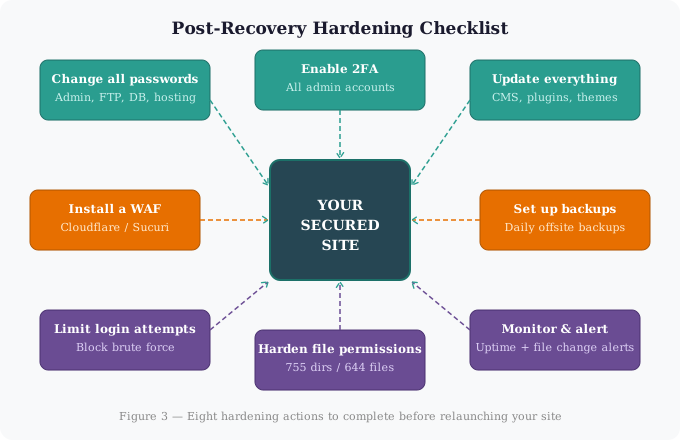
Cleaning the site is only half the job. Before you bring it back online, close every door the attacker used and add layers that prevent the next attempt.
1. Change every password
Change passwords for all of the following — assume every credential on the server is compromised:
- WordPress (or CMS) admin accounts
- FTP / SFTP accounts
- Database user password (and update wp-config.php to match)
- Hosting control panel (cPanel/Plesk)
- Email accounts associated with the domain
Use a password manager to generate strong, unique credentials (minimum 16 characters, mixed case, numbers, and symbols).
2. Enable two-factor authentication
Install a 2FA plugin (Google Authenticator, WP 2FA) on all admin accounts. This alone blocks the vast majority of credential-based attacks even if a password is stolen.
3. Update everything
Update WordPress core, all plugins, and all themes to their latest versions. If a plugin or theme has not been updated by its developer in over 12 months, consider replacing it with a maintained alternative.
4. Install a Web Application Firewall (WAF)
A WAF sits in front of your site and blocks malicious requests before they reach your server. Good options include:
- Cloudflare — free tier blocks common attacks and adds a CDN
- Sucuri Firewall — specialist website security, paid service
- Wordfence — server-level firewall for WordPress
5. Harden file permissions
Set correct Unix file permissions via FTP or SSH:
- Directories:
755 - Files:
644 - wp-config.php:
440or400
In cPanel, use the File Manager to adjust permissions. Via SSH: find /public_html -type d -exec chmod 755 {} \; and find /public_html -type f -exec chmod 644 {} \;
6. Set up automated backups
Configure daily backups that store copies offsite — not just on your hosting server. If your server is compromised, backups on the same server are also at risk. Options include:
- UpdraftPlus (WordPress) — backs up to Google Drive, Dropbox, or Amazon S3
- BlogVault — managed WordPress backups with one-click restore
- Your hosting provider’s backup service (verify it is truly offsite)
7. Limit login attempts
Install a plugin like Limit Login Attempts Reloaded or WP Cerber to lock out IP addresses after repeated failed logins. This stops brute-force attacks.
8. Set up monitoring
You should be notified the moment something changes on your site, not days later. Configure:
- Uptime monitoring — UptimeRobot (free) alerts you within minutes if your site goes down
- File change monitoring — Wordfence or Sucuri can alert you when core files are modified
- Google Search Console alerts — Enable email notifications for security issues
Step 6: Request Removal from Blacklists
If Google, your hosting provider, or a security vendor blacklisted your site, you need to formally request review once the site is clean.
Google Safe Browsing
- Log into Google Search Console
- Go to Security & Manual Actions > Security Issues
- Review the listed issues and confirm each is resolved
- Click “Request a Review” and describe what you found and fixed
- Google typically reviews within 1–3 days. If approved, the warning is removed from search results
Other blacklist removal requests
- McAfee SiteAdvisor: trustedsource.org
- Norton Safe Web: safeweb.norton.com
- Spamhaus: spamhaus.org/removal
- Sucuri Blacklist Checker: sitecheck.sucuri.net — shows which lists you appear on
When to Call a Professional
DIY recovery is achievable for most standard attacks on common CMS platforms. However, you should consider hiring a professional security firm if:
- Customer payment data or personal information may have been accessed — this may also trigger legal reporting obligations under GDPR or PCI-DSS
- The attack is sophisticated and you cannot find the entry point after a thorough investigation
- The site keeps getting re-infected after repeated cleanings
- Your site runs custom code, a complex stack, or a high-traffic e-commerce platform
Reputable services include Sucuri’s Hack Removal service, Wordfence Site Cleaning, and SiteLock Emergency Response. Expect to pay between $150 and $500 for a standard clean, with higher-tier options for complex cases.
How to Prevent the Next Attack
Recovery is reactive. The goal from here is to make your site a much harder target than the thousands of other sites bots will find first.
- Keep everything updated. The majority of WordPress hacks exploit known vulnerabilities that have already been patched. Enable automatic updates for minor WordPress versions and non-critical plugins.
- Use strong, unique passwords and a password manager. A compromised password on one service should never give access to your hosting.
- Audit plugins quarterly. Remove anything unused. Check that active plugins are still maintained by their developers.
- Choose quality hosting. Managed WordPress hosts include proactive malware scanning, automatic updates, and server-level firewalls that shared hosting does not.
- Run regular security scans. Schedule a monthly scan with Wordfence or Sucuri even when everything seems fine.
- Test your backups. A backup you have never restored is a backup you do not know works. Test restoration in a staging environment every few months.
Summary
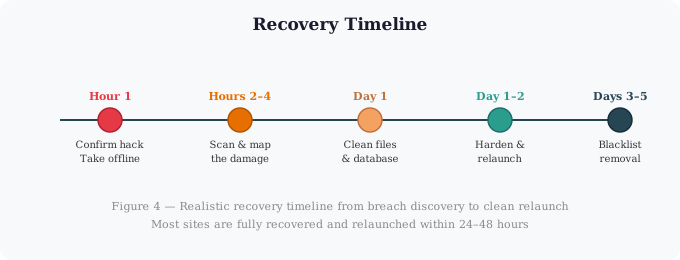
A hacked website is frightening but recoverable. The key is to act quickly, work methodically, and not skip the hardening step — it is what separates a one-time incident from a recurring nightmare. Follow the five phases: confirm, take offline, scan, clean, and harden. Most site owners who act within the first few hours can have a clean, secured site back online within 24–48 hours.
The single most important thing you can do right now, before you ever get hacked, is to set up daily offsite backups. Everything else can be fixed. A site with no backup — and no record of what it looked like before the breach — is the worst position to be in.