
AI Integration for SMEs — Where to Start Without a Big Budget
June 4, 2026I moved a small WordPress portfolio site (xxxx.com) from an older Bitnami instance on AWS Lightsail to Lightsail’s newer WordPress setup, put it behind Cloudflare, and switched it from an IP address to a proper domain.
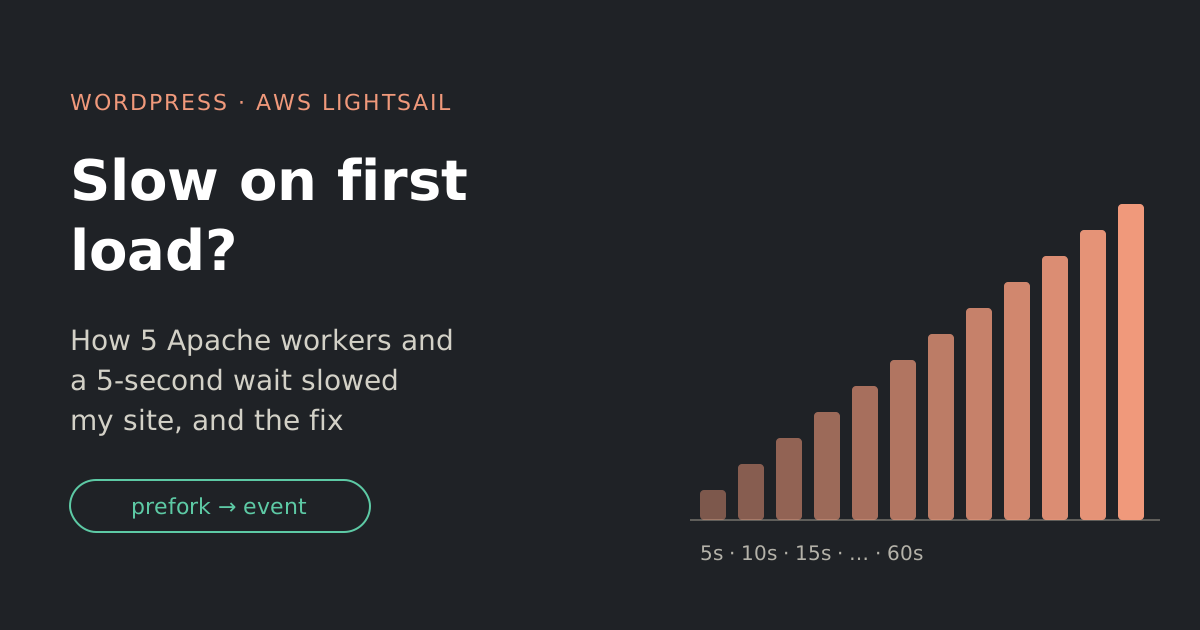
Then it got slow. Not always: the first visit after a quiet spell sat on a blank screen for 5–10 seconds, sometimes 30+. Once it loaded, everything was fast. That pattern sent me down a lot of wrong paths before I found the real cause.
The symptoms
- First visit after a few idle hours: blank page for 5–30 seconds.
- Every visit after that: fast.
- Same in the WordPress dashboard: each admin page was slow the first time, then fine.
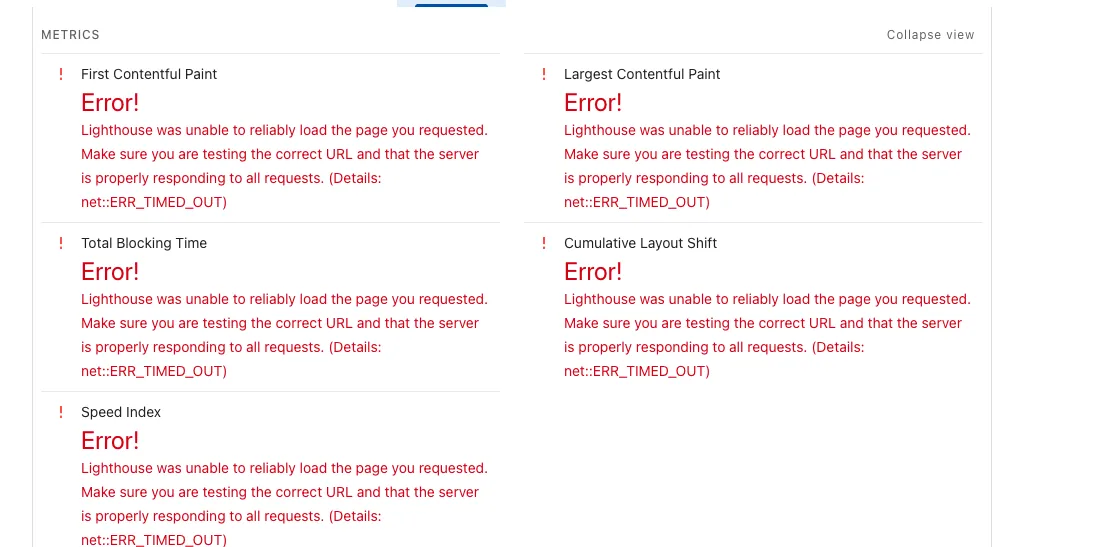
- Google PageSpeed sometimes failed completely with
net::ERR_TIMED_OUT.
What I tried first (and why it didn’t fix it)
Doubling the server size. No change. In hindsight, that was the biggest clue: if more power doesn’t help, the problem isn’t power.
Cloudflare security settings. Bot Fight Mode was off, there were no custom rules, and nothing was challenging visitors. Not the cause.
WP-Cron. WordPress runs scheduled tasks on visitor page loads, so I moved them to a real server cron job and disabled WP-Cron. Good practice, but not the fix.
Server talking to itself through Cloudflare. I added www.xxxx.com to /etc/hosts on the server so WordPress calls itself directly. Also good practice, but not the fix.
Measuring with curl. The page HTML came back in about 0.13s directly from the server and 0.25s through Cloudflare, even after an idle night. So the page itself was never slow. Something after it was.
Two real problems I found along the way
These weren’t the main cause, but both were genuinely broken.
1. IPv6 records pointing nowhere. I’d added AAAA (IPv6) records in Cloudflare during setup. Lightsail’s IPv6 addresses aren’t static, so after resizing, they pointed at a dead address. Cloudflare sometimes tried IPv6, waited, then timed out. Deleting the AAAA records fixed the PageSpeed timeouts. Cloudflare handles IPv6 for visitors anyway.
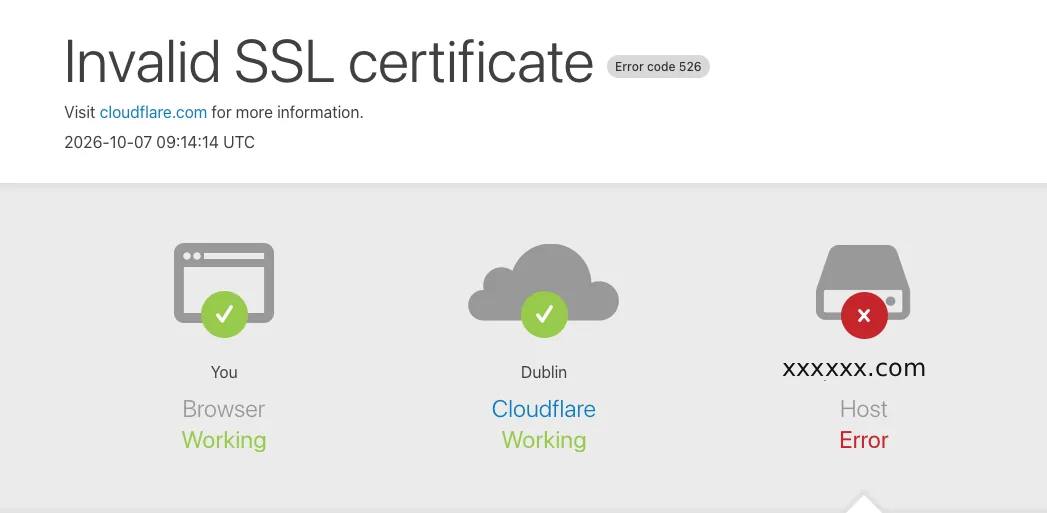
2. A broken SSL certificate after restart. After a restart, Cloudflare showed error 526 (invalid SSL certificate). The Let’s Encrypt setup had been scrambled when the instance was copied during the resize (fullchain does not match cert + chain), and Apache fell back to a placeholder “snakeoil” certificate. I replaced it with a free Cloudflare Origin Certificate (valid 15 years, no renewals) and set Cloudflare to Full (strict).
Catching it in the act
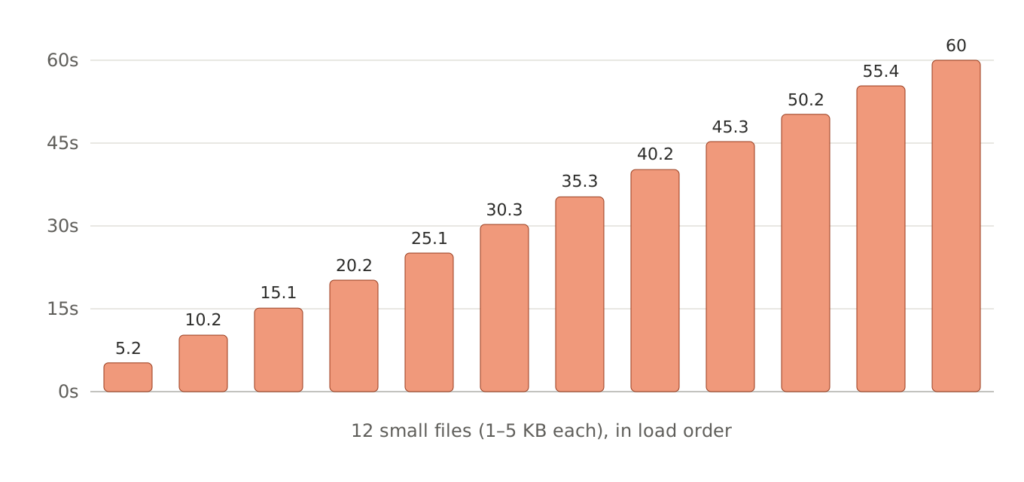
Load times of small admin files, in seconds. They climb in 5-second steps.
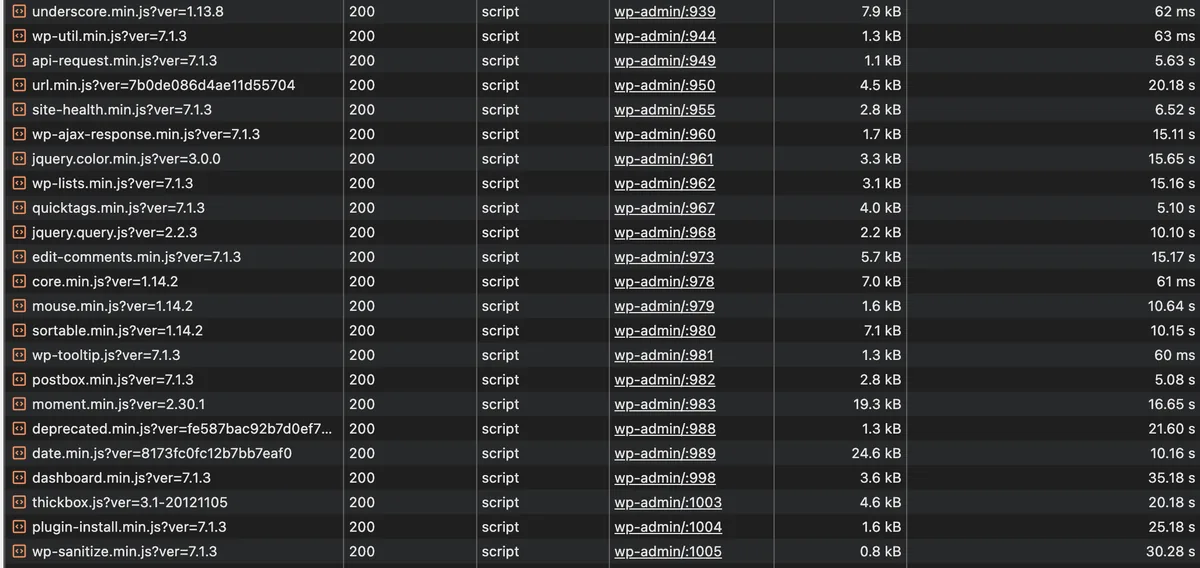
The breakthrough came from opening Chrome’s developer tools (Network tab, Disable cache ticked) and loading a WordPress admin page I hadn’t visited yet. The page itself took 3.45s, but look at how long tiny 1–5 KB files took:
The times climb in near-perfect 5-second steps: 5, 10, 15, 20… up to over a minute. Files that small don’t take 5 seconds to download. They were standing in a queue, and the queue moved forward once every 5 seconds.
The real cause: 5 workers and a 5-second wait
Checking Apache’s settings on the new server showed:
Server MPM: prefork
MaxRequestWorkers 5
KeepAliveTimeout 5
Think of Apache as a shop. MaxRequestWorkers 5 meant only 5 tills were open. KeepAliveTimeout 5 meant each cashier, after serving someone, waited 5 seconds in case that customer had another item before serving the next person. A WordPress admin page loads over 100 files, so almost everything queued.
The old Bitnami instance used Apache’s event mode instead, which is why it never had this problem:
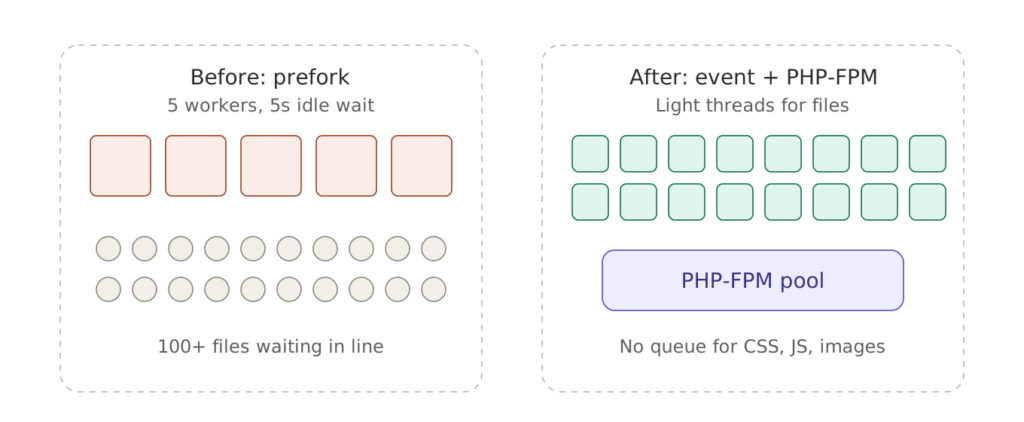
Prefork: every file takes a heavy worker. Event + PHP-FPM: files use light threads, and only PHP pages use the PHP pool.
In prefork mode, every request, even a 1 KB icon file, takes up one heavy worker. In event mode, static files are handled by lightweight threads, and only actual PHP pages go to a separate PHP-FPM pool.
This also explained everything else:
- Why it was fast after the first visit: the browser had cached the files, so there was no queue.
- Why a bigger server didn’t help: it was a setting, not a lack of power.
- Why curl looked fine: curl only fetches one file, so it never hits a queue.
The fix
On Debian with PHP 8.2, switching Apache to event mode with PHP-FPM took a few commands:
sudo apt update && sudo apt install -y php8.2-fpm
sudo a2dismod php8.2 mpm_prefork
sudo a2enmod mpm_event proxy_fcgi setenvif
sudo a2enconf php8.2-fpm
sudo systemctl enable --now php8.2-fpm
sudo apache2ctl configtest && sudo systemctl restart apache2
Check it worked:
sudo apache2ctl -V | grep -i mpmIt should say event.
Watch out after switching
PHP-FPM uses its own settings file (/etc/php/8.2/fpm/php.ini), not the one Apache used before. After the switch, Elementor’s styling panel partly disappeared because:
- upload and post limits dropped to the defaults (2M and 8M)
- a Lightsail file,
90-lightsail-memory.ini, that raised PHP memory to 512M only existed for the old setup
The fix was to set sensible values in the FPM php.ini, and copy the memory file across:
sudo cp /etc/php/8.2/apache2/conf.d/90-lightsail-memory.ini /etc/php/8.2/fpm/conf.d/
sudo systemctl restart php8.2-fpm
A quick way to spot other differences:
diff <(ls /etc/php/8.2/apache2/conf.d) <(ls /etc/php/8.2/fpm/conf.d)Lessons
- If more power doesn’t help, look for a limit, not a lack of power.
- Measure in the browser, not just with curl. curl tests one file; browsers load dozens at once.
- Look for patterns in the numbers. Neat 5-second steps pointed straight at a 5-second setting.
- Check the defaults on a new server image. Lightsail’s newer WordPress setup ships with Apache tuned for minimum memory, not for a real site.
- Fix the real problems you find along the way, even if they’re not the main cause. The IPv6 records and broken certificate would have caused trouble sooner or later.